Account and workspace
Branding
Tandem branding sets how candidates see your company on job and application pages, the apply chat, emails and AI interviews.
What you can set
Open Settings → Branding.
- Assistant name and avatar: what candidates see in chat and interviews.
- Logo: your company logo.
- Brand kit: logo, colors, font and corner radius, for candidate pages.
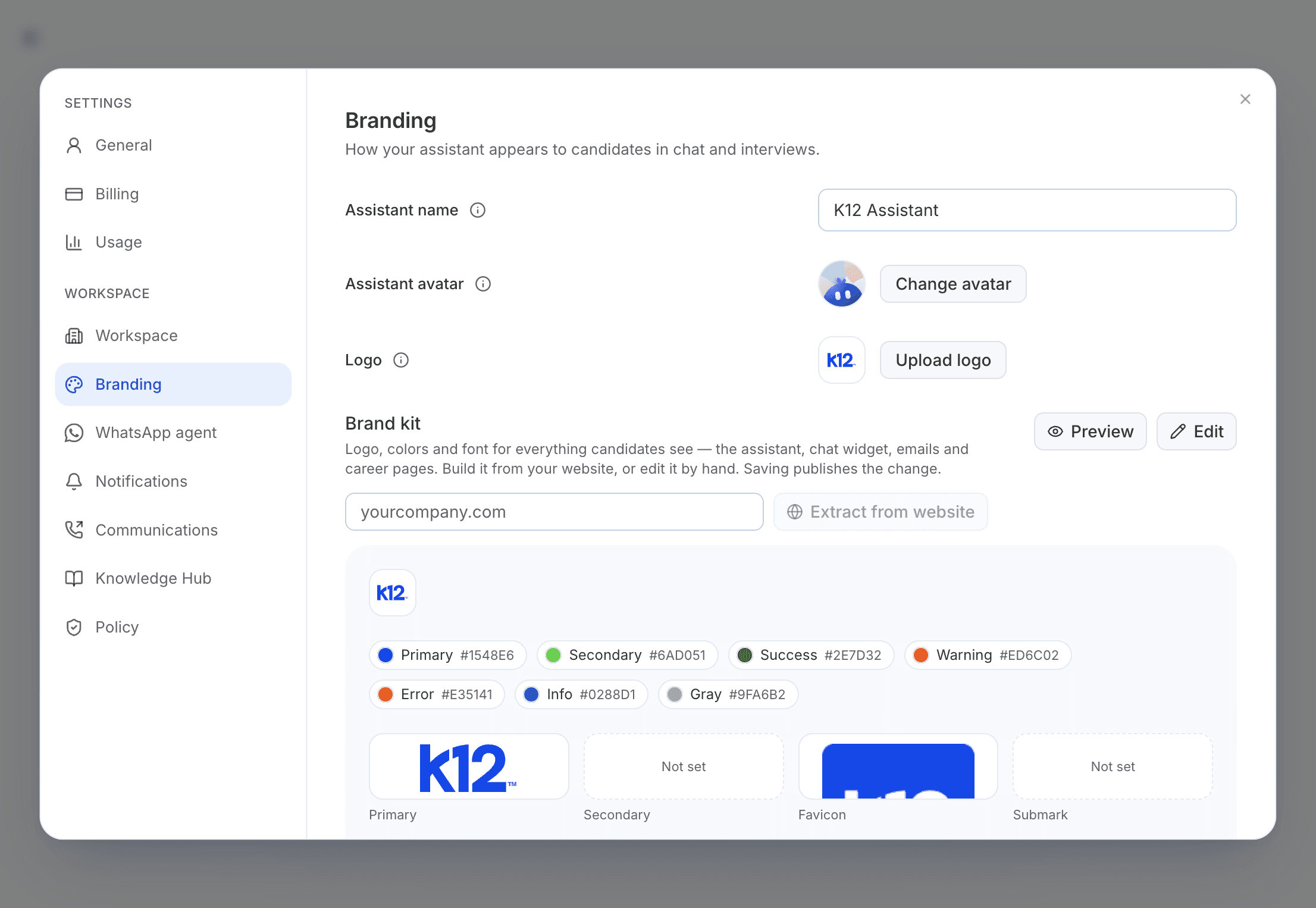
Build the brand kit from your website
Enter your website
In Brand kit, type your site's address, such as yourcompany.com.
Select Extract from website
If you already have a brand kit, confirm Replace brand kit, or select Keep current brand to stop.
Tandem replaces the brand kit's logo, colors and font, and the logo the assistant shows. This takes a little while and can't be undone. The assistant's name and avatar stay the same.
Edit the brand kit by hand
Select Edit, make your changes, and check Preview. Logos can be PNG, JPEG, GIF or WebP, up to 2 MB. Select Save changes to publish the change to your pages, chat and emails.
Related: Your apply page and public job page