Go live, pause or close a role
Make a Tandem role live from its chat, pause or close it from the ⋯ menu, and what each choice does to your job ads and outreach.
Go live
When the draft is ready, tell Tandem make the role live. Your job page goes public, the role starts collecting applicants, and it moves to Active Roles with a Live badge.
Tandem also runs a first search of the open market for matches. Searches use credits: 3 credits per candidate.
First role in a workspace
A workspace's first role can't go live until someone reviews the candidate policies. Open Settings → Policy and click Mark as reviewed. You only do this once.
Going live doesn't start job ads. To advertise, use the role's Advertise panel.
Related: Start advertising a role
Pause a role
Click ⋯ (top right) → Pause role to put the role's pipeline on hold. While it's paused, its candidates on hold show in Needs review as Role paused, with no decision needed yet. Click Resume role to carry on.
Pausing doesn't stop ads or outreach
Job ads and outreach keep running while a role is paused. To stop ads, click Stop advertising in the Advertise panel.
Close a role
Click ⋯ → Close role… when you've finished hiring. Closing is permanent: the role can't be reopened. Any job ad credits not yet spent come back to your balance.
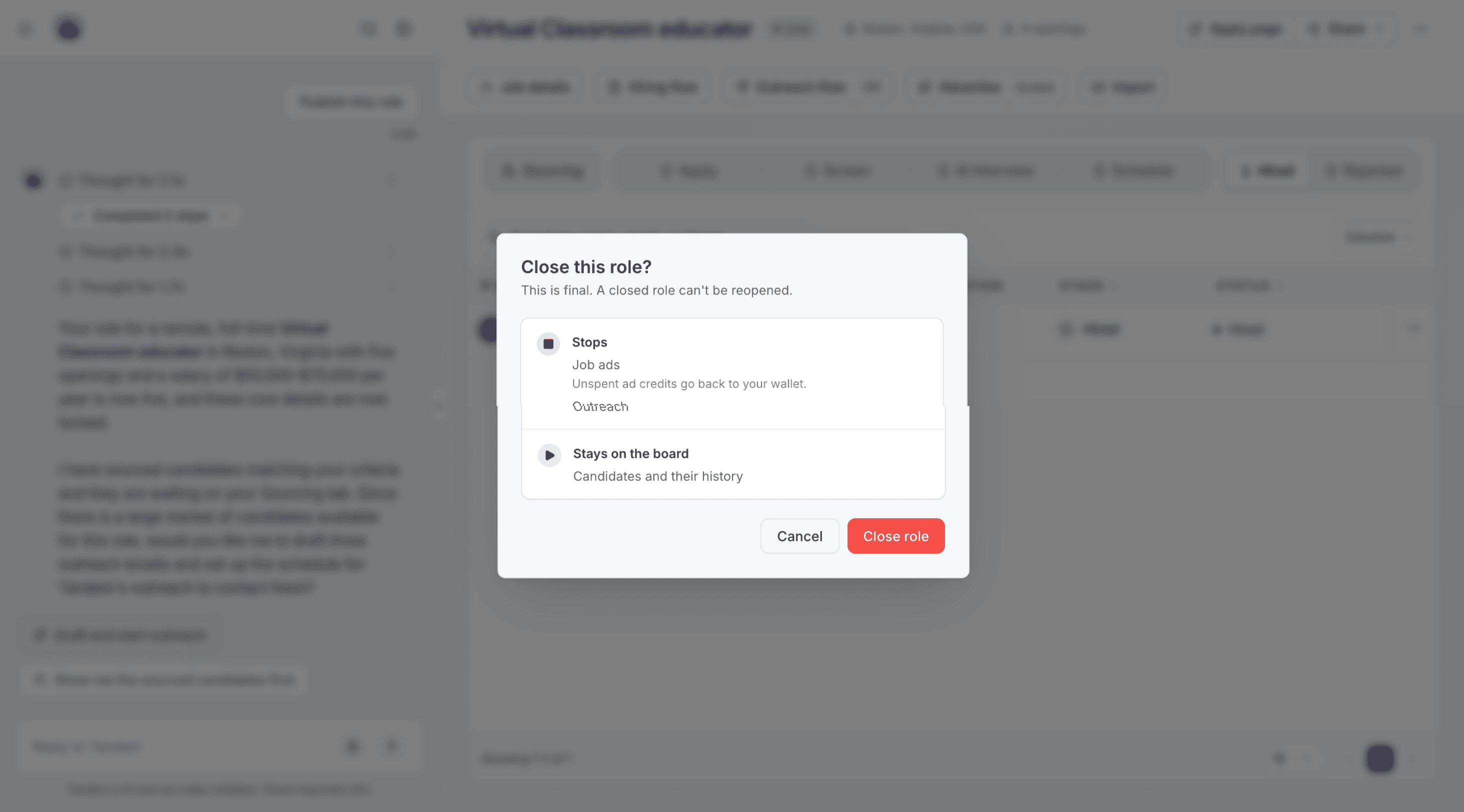
If you ask Tandem to close a role, it tells you what will change and asks you to confirm first.
Stuck in draft? Ask Tandem in the role's chat what's left before going live. More answers are in the Roles FAQs.
Scoring and auto-advance
How Tandem scores screening and AI interview answers, how question importance counts, and when auto-advance moves a candidate on.
Your apply page and public job page
Every live Tandem role has a public job page, where candidates read about the role and apply by chatting with your assistant.