Set up AI screening
AI screening in Tandem is a short chat of qualifying questions. Set its channels, questions and messages in the role's Screen stage.
Open the Screen stage
Open the stage
Open the role, click Hiring flow, expand Screen and click Edit stage.
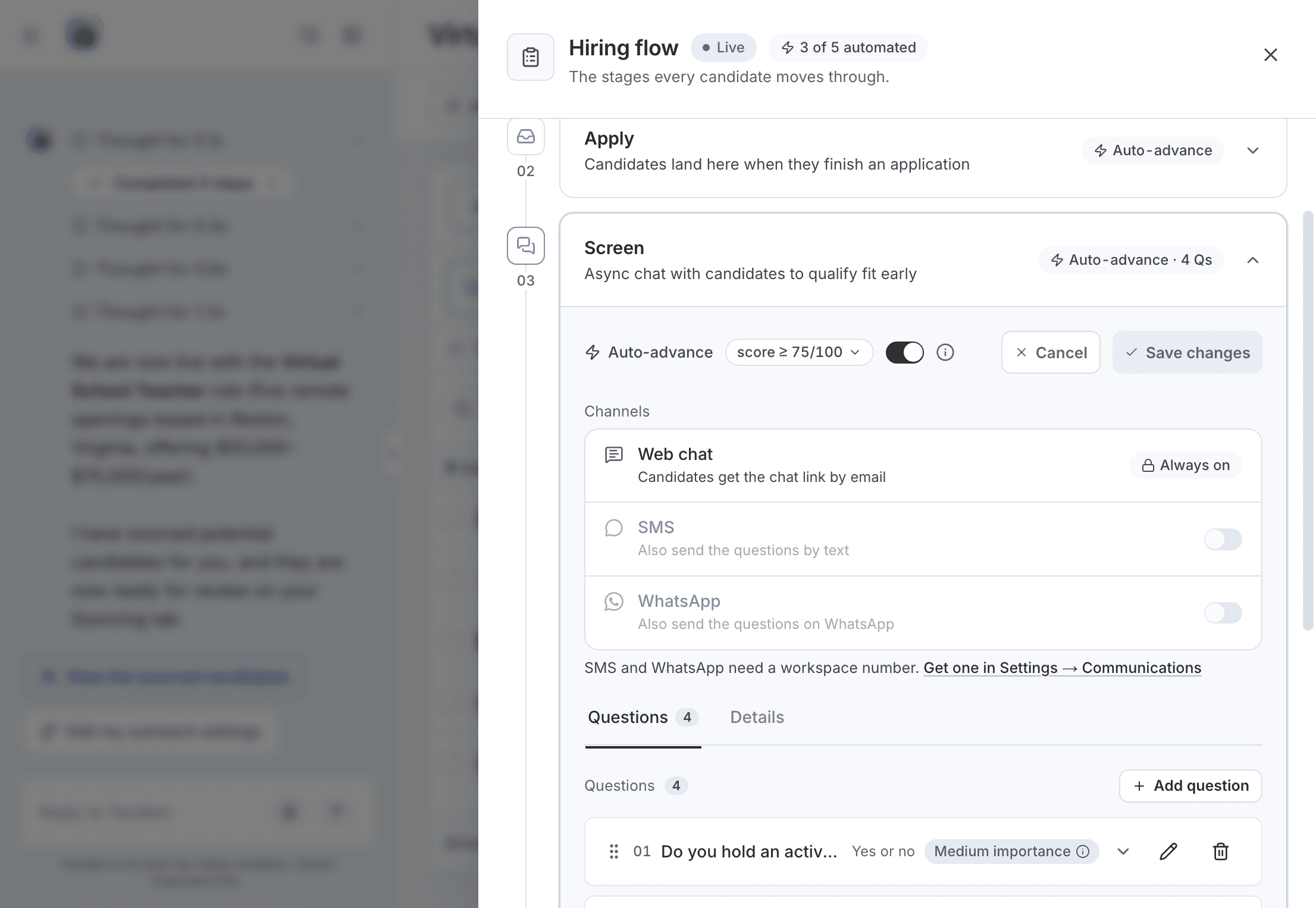
Save
Click Save changes. On a live role, changes apply to candidates who reach the stage afterward.
You can also ask Tandem in the role's chat, for example "Add a question about weekend availability to the screening."
What you can set
| Setting | What it's for |
|---|---|
| Channels | Where applicants answer |
| Questions | What applicants answer, and how much each counts |
| Details | Opening and closing messages candidates see |
Auto-advance | Score a candidate needs to move on |
Web chat is always on, and applicants get the link by email after they apply. You can add SMS or WhatsApp, one at a time, sent from your workspace's number. Each question has a type, such as Yes or no or One choice, and an importance of High, Medium or Low. Screening runs in English.
Related: Scoring and auto-advance
Auto-advance
Each screening gets a score out of 100. With Auto-advance on, candidates at or above your bar move to the next stage, and everyone else waits for you in Needs review. A suggested starting bar for Screen is 75.
To turn it on, you confirm that you're choosing AI-assisted screening. Tandem never rejects a candidate.
Related: Needs review
Next: Set up the AI interview, or read Writing fair questions and criteria.